A atualização do Windows que derrubou seu driver de áudio, e como segurarThe Windows update that killed your audio driver, and how to hold it back

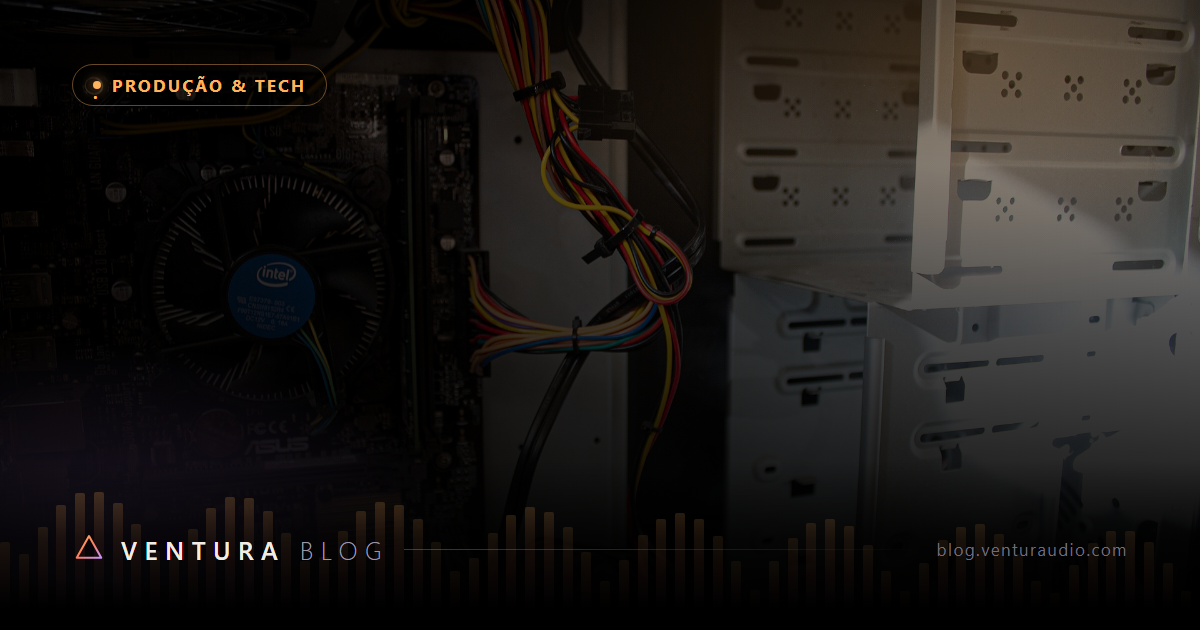
Foto: Matt Vanacoro · CC BY
A cena é sempre igual. Você senta pra trabalhar, abre a DAW, e a interface não está mais lá. Ou pior, está lá com outro nome, funcionando por um driver genérico que o Windows escolheu sozinho, com uma latência que inviabiliza gravar.
Entre ontem e hoje aconteceu uma atualização. E o que ela fez tem nome.
Por que o Windows troca um driver que estava funcionando
O Windows Update não distribui só correções do sistema. Ele também distribui drivers, e trata isso como uma melhoria. A lógica dele é razoável pra um computador comum: se existe um driver mais novo no catálogo da Microsoft, instale.
O problema é que "mais novo no catálogo da Microsoft" e "melhor pra sua interface de áudio" são coisas diferentes, e às vezes opostas.
Fabricante de interface costuma validar o driver contra as DAWs, testar latência e corrigir bug específico de áudio. O driver genérico do catálogo, quando existe um, é feito pra a interface funcionar de alguma forma, não pra ela funcionar bem. Quando o Update decide que a versão dele é mais recente que a sua, ele substitui, e a sua sessão paga a conta.
Existe uma variação pior. Em atualização grande de sistema, aquela que praticamente reinstala o Windows por cima, drivers de terceiros podem simplesmente não sobreviver à travessia. A interface volta como dispositivo desconhecido.
Como impedir, de fato
Existem várias camadas, e vale aplicar mais de uma.
Bloquear driver pela política de grupo. É a trava mais eficaz. No Editor de Política de Grupo, vá em Configuração do Computador, Modelos Administrativos, Componentes do Windows, Windows Update, e ative a opção que impede a inclusão de drivers nas atualizações do Windows.
Uma ressalva importante: o Editor de Política de Grupo não existe nas edições Home. Se a sua é Home, a mesma trava se faz pelo registro, criando um valor DWORD chamado ExcludeWUDriversInQualityUpdate com valor 1 em HKEY_LOCAL_MACHINE\SOFTWARE\Policies\Microsoft\Windows\WindowsUpdate. Mexer no registro pede cuidado, então exporte a chave antes.
Desligar a busca automática por drivers do fabricante. Nas propriedades do sistema, aba Hardware, existe uma tela de configurações de instalação de dispositivos. Escolha a opção de não baixar automaticamente. Isso corta um segundo caminho pelo qual drivers chegam sozinhos.
Pausar atualizações enquanto tem trabalho em andamento. O Windows permite adiar por algumas semanas. Não é solução permanente, e nem deveria ser, porque correção de segurança importa. Mas é a diferença entre a máquina atualizar num sábado à tarde, quando você tem tempo de testar, e atualizar na véspera de uma entrega.
Guarde o instalador do driver que funciona. Esta é a mais simples e a mais ignorada. Baixe o instalador da versão que está funcionando bem, guarde numa pasta junto do backup, e anote a versão. No dia em que algo trocar o driver, você reinstala em três minutos em vez de caçar no site do fabricante uma versão antiga que talvez nem esteja mais publicada.
Quando já aconteceu
Reverter driver. No Gerenciador de Dispositivos, encontre a interface, abra as propriedades, aba do driver, e use a opção de reverter. Ela devolve a versão anterior, e existe justamente pra este caso. Fica indisponível se o Windows já limpou os arquivos antigos, o que é mais um argumento pra guardar o instalador.
Reinstalar por cima. Desinstale o driver atual marcando a opção de remover o software do dispositivo, reinicie, e instale o instalador que você guardou. Só depois reconecte a interface.
Ponto de restauração. Se você cria pontos antes de atualizar, voltar o sistema inteiro resolve casos em que o driver não é o único estrago. Vale criar um antes de qualquer atualização grande.
A parte que ninguém gosta de ouvir
Trave demais e você fica com um sistema desatualizado, com falha de segurança conhecida, o que é um risco real principalmente se a mesma máquina entra em banco e recebe arquivo de cliente.
O equilíbrio que funciona na prática é este: bloqueie driver, mas deixe correção de segurança passar. É exatamente isso que a política de grupo permite, separar as duas coisas. Você continua protegido e para de acordar com a interface trocada.
E reserve uma janela pra atualizar de propósito, num dia em que dá pra testar a máquina depois. Atualização não é o inimigo, atualização por surpresa é.
The scene is always the same. You sit down to work, open the DAW, and the interface is not there anymore. Or worse, it is there under another name, running on a generic driver Windows picked on its own, with latency that makes recording pointless.
Between yesterday and today an update happened. And what it did has a name.
Why Windows replaces a driver that was working
Windows Update does not only distribute system fixes. It also distributes drivers, and treats that as an improvement. Its logic is reasonable for an ordinary computer: if there is a newer driver in the Microsoft catalogue, install it.
The problem is that "newer in the Microsoft catalogue" and "better for your audio interface" are different things, and sometimes opposite ones.
Interface manufacturers usually validate their driver against DAWs, test latency and fix audio specific bugs. The generic catalogue driver, where one exists, is built to make the interface work somehow, not to make it work well. When Update decides its version is more recent than yours, it replaces it, and your session pays.
There is a worse variant. During a major system update, the kind that practically reinstalls Windows over itself, third party drivers may simply not survive the crossing. The interface comes back as an unknown device.
How to actually prevent it
There are several layers, and it is worth applying more than one.
Block drivers through Group Policy. The most effective lock. In the Group Policy Editor, go to Computer Configuration, Administrative Templates, Windows Components, Windows Update, and enable the option that stops drivers from being included in Windows updates.
One important caveat: the Group Policy Editor does not exist in Home editions. If yours is Home, the same lock is made through the registry, creating a DWORD value named ExcludeWUDriversInQualityUpdate set to 1 under HKEY_LOCAL_MACHINE\SOFTWARE\Policies\Microsoft\Windows\WindowsUpdate. Editing the registry deserves care, so export the key first.
Turn off automatic manufacturer driver downloads. In system properties, Hardware tab, there is a device installation settings screen. Choose not to download automatically. That cuts a second path through which drivers arrive on their own.
Pause updates while work is in progress. Windows allows deferring for a few weeks. Not a permanent solution, and it should not be, because security fixes matter. But it is the difference between the machine updating on a Saturday afternoon, when you have time to test, and updating the night before a delivery.
Keep the installer of the driver that works. The simplest one, and the most ignored. Download the installer of the version that is running well, keep it in a folder alongside your backup, and note the version. The day something swaps your driver, you reinstall in three minutes instead of hunting the manufacturer site for an old version that may not even be published anymore.
When it already happened
Roll back the driver. In Device Manager, find the interface, open properties, driver tab, and use the roll back option. It restores the previous version, and exists for exactly this case. It becomes unavailable once Windows has cleaned up the old files, which is one more argument for keeping the installer.
Reinstall over the top. Uninstall the current driver with the option to remove the device software, restart, then run the installer you saved. Reconnect the interface only after that.
Restore point. If you create points before updating, rolling the whole system back solves cases where the driver is not the only casualty. Worth creating one before any major update.
The part nobody likes to hear
Lock things down too hard and you end up with an outdated system carrying known security flaws, a real risk especially if the same machine does your banking and receives client files.
The balance that works in practice is this: block drivers, but let security fixes through. That is exactly what Group Policy allows, separating the two. You stay protected and stop waking up to a swapped interface.
And set aside a window to update on purpose, on a day when you can test the machine afterwards. Updates are not the enemy. Surprise updates are.
Plugins que você enxergaPlugins you can see
Conheça o PRISMA e o catálogo Ventura Audio.Meet PRISMA and the Ventura Audio catalog.
IR PARA A LOJAGO TO STORE